
How to Highlight Local HTML Files with WuCai
Web pages you save as .html, or single-file snapshots made with tools like SingleFile, can be highlighted and annotated with WuCai too. Browsers block extensions from reading local files by default, so you need to turn on one switch first.
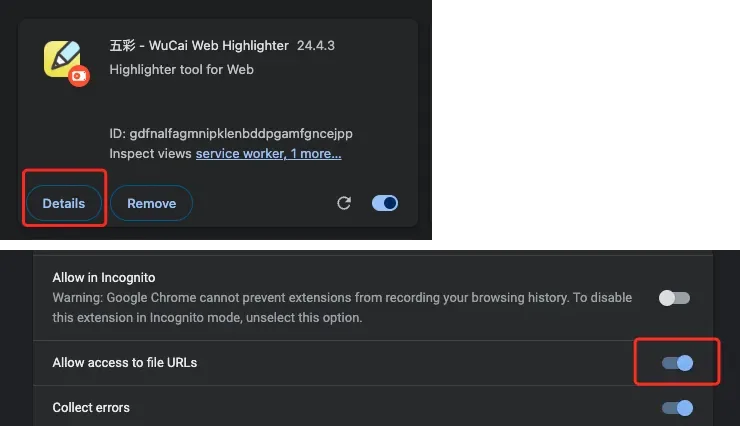
Allow access to file URLs
- Open your browser's extensions page (
chrome://extensionsin Chrome,edge://extensionsin Edge). - Find WuCai Highlight and click "Details".
- Turn on "Allow access to file URLs".
Start highlighting
Open the local .html file in your browser, select text as you would on any web page, and use the floating toolbar to highlight and annotate. All your highlights are also listed in the WuCai Highlight dashboard.
Safari is not supported
Safari is not supported
WuCai cannot highlight local HTML files in Safari.
If highlighting does not work
- Make sure the switch is on and reload the local file once.
- If the file's content or path changed, a highlight may no longer find its text — see the FAQ on highlights disappearing.
- For other cases, see the FAQ on pages that cannot be highlighted.