
Extension Preference
On the browser, right - click on the WuCai Highlight icon and select 【Settings】 from the menu that appears to enter the plugin's preference settings page. 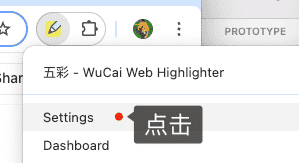
Alternatively, click the preference settings button on the sidebar. 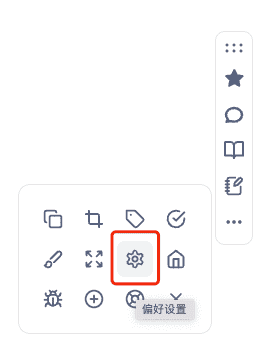
Shortcut Key Settings
With shortcut keys, you can add a single - letter shortcut key to an action for quick triggering on the page. 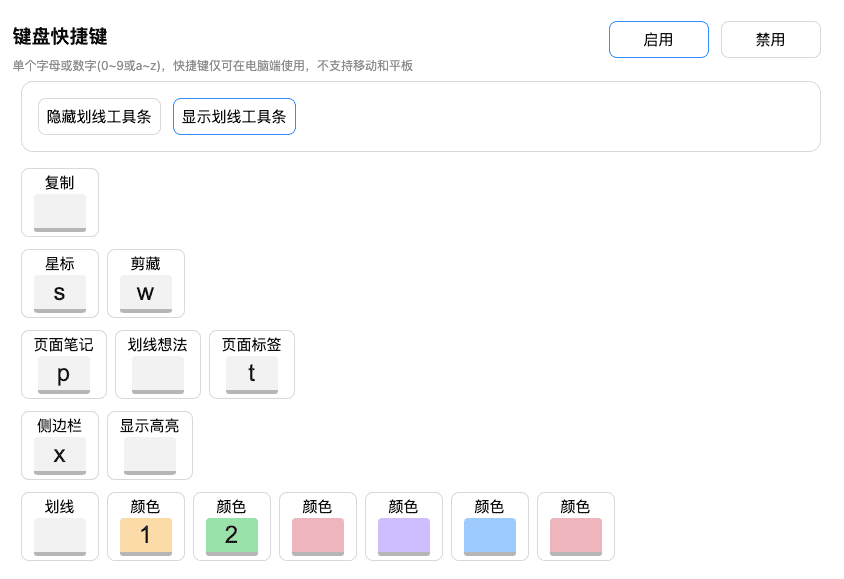
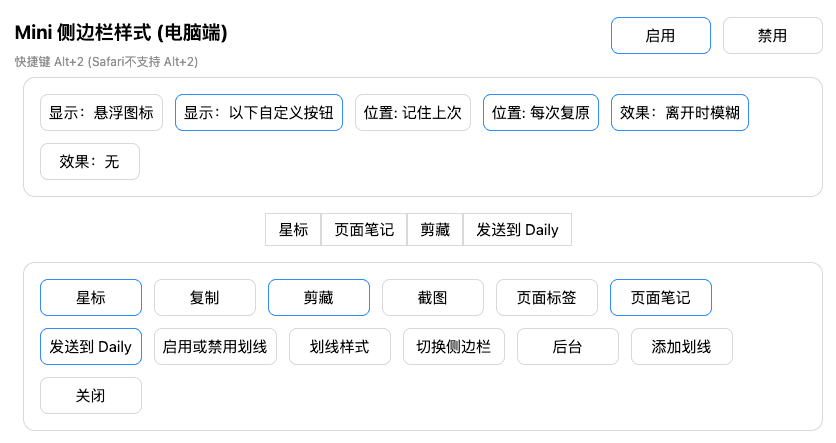
Mini Sidebar Settings
The buttons on the Mini sidebar can be customized.
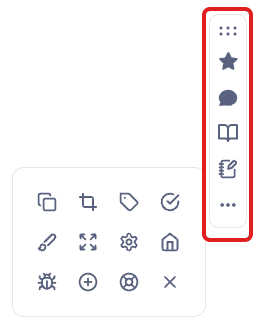
Toolbar Settings
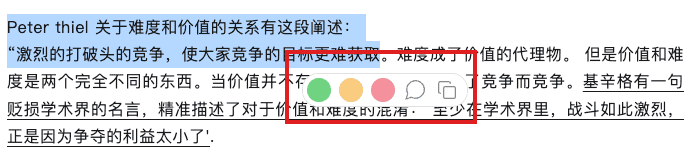
Customize the highlighting toolbar 
Highlighting Styles
You can select your preferred highlighting style in the plugin's preference settings.

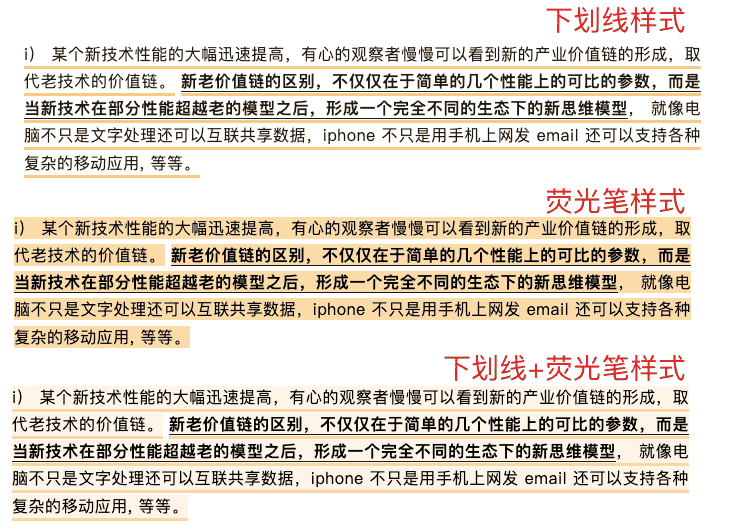
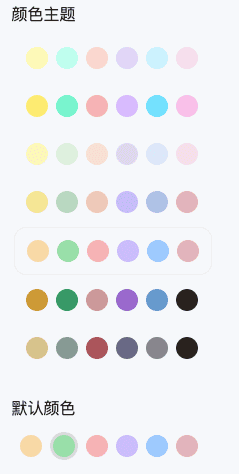
Highlighting Color and Style Settings
Site Blacklist Settings
Blacklist rule: By default, all websites are available unless the domain name is in the blacklist.
The blacklist is a list of websites where highlighting is not needed, and highlighting works normally on other websites.
How to enable the blacklist?
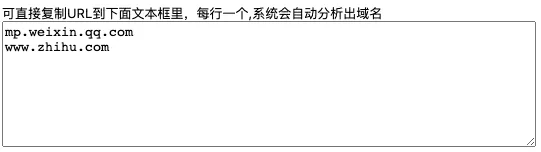
Just copy the URL into the input box, and the system will automatically extract the site domain name.
Site Whitelist Settings
Whitelist rule: By default, all websites are unavailable unless the domain name is in the whitelist.
The whitelist can be considered as a list of websites where highlighting is often needed. Highlighting is disabled on sites not in the whitelist.
How to enable the whitelist?
Just copy the URL into the input box, and the system will automatically extract the site domain name. The operation method is similar to that of the blacklist.
Precautions for Using Whitelist and Blacklist
- It is not recommended to enable both at the same time. If both are enabled, the whitelist takes effect and the blacklist becomes invalid.
- If you find that highlighting is not available on a certain website, check whether you have enabled the whitelist/blacklist.
- If you want highlighting to be available on all websites, clear the whitelist and blacklist.
- After each update, the original page needs to be refreshed to take effect.